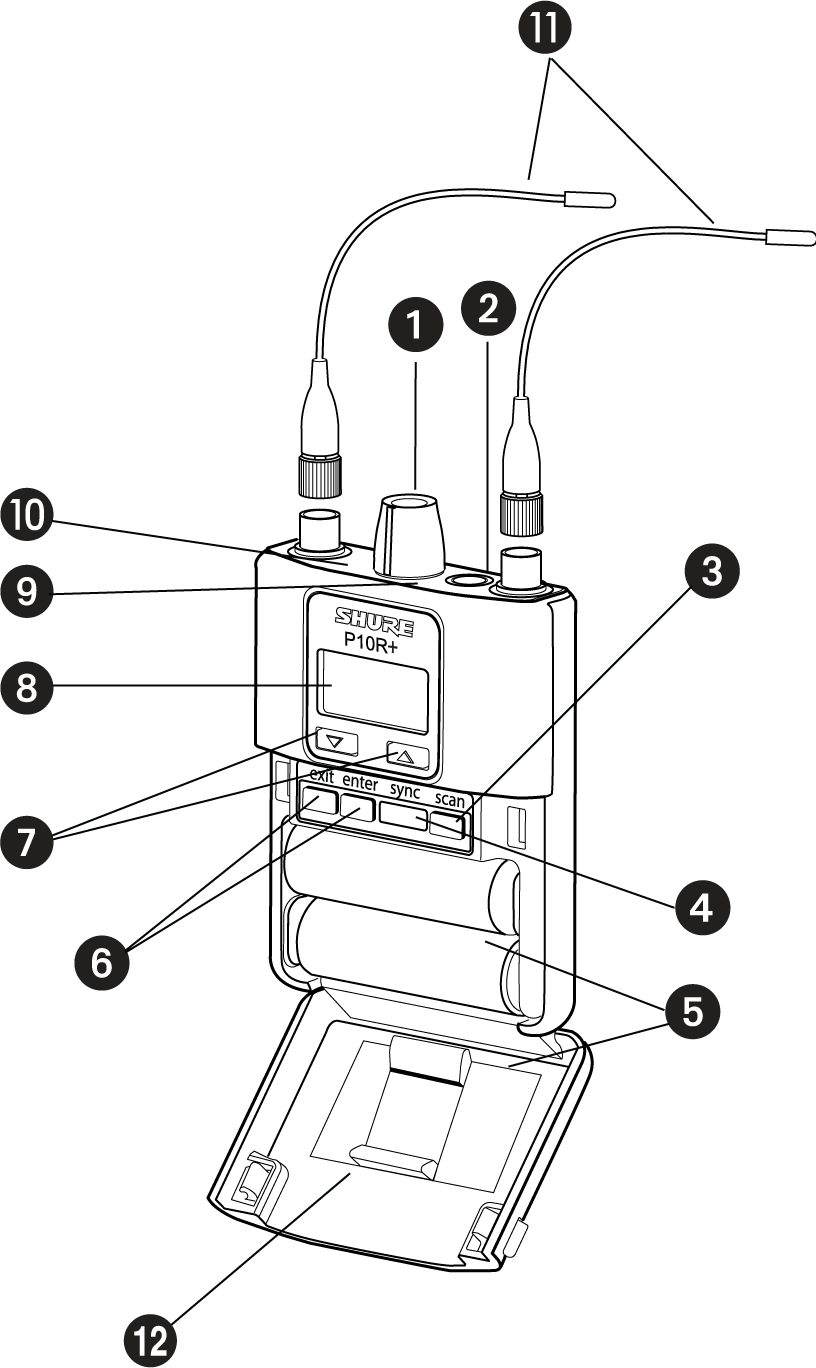
Compare channel levels, Stereo and MixMode, then set the P10R+ panel lock without taking away the performer’s volume control.
Model and scope
Manufacturer
Shure
Model covered by this guide
Shure PSM1000 (P10R+)
Application
PSM1000 in-ear monitoring with P10R+. Identify the RF band and system configuration. Check that the label says P10R+ before applying its controls: P10R and P10R+ are distinct variants.
To prepare in-ear monitoring, let’s review how many listening feeds you need, which mixes the console provides and which controls each performer should retain. GLMedia can help you choose and prepare a configuration. Start with the intended use, date and city, even if receivers, transmitters and mixes are still being decided.
Questions and troubleshooting
One side of the P10R+ is quieter, although the transmitter’s L/R indicators look equal. What should I compare?
Compare the two signals entering the transmitter first, then the receiver mode and balance. Similar indicators do not prove that the whole chain is balanced. Compensating with balance before locating the difference can hide a routing, cable or monitoring problem.
In Audio → MODE, STEREO keeps left and right separate. MIXMODE combines both inputs in both earphones; BAL MIX controls their proportion. To compare a stereo mix, check STEREO and note BAL ST. A MixMode setting can change what you hear even when the transmitted signals have not changed.
Record transmitter model and band, firmware on both units, console output, input and mode. Turn down receiver volume before connecting or changing earphones, then raise it gradually for listening, as Shure specifies during setup.
Outside the live program, feed the same test signal to both console outputs with identical level and processing. Check those outputs before the wireless link. If they already differ, inspect console sends, pan, patch and cabling before changing the receiver.
If the transmitter is a P10T, also check its transmission mode. The manual specifies Audio → Mono for a mono source; this comparison needs two independent channels. Check Util → Audio → INPUT. Select sensitivity for the source: +4 dBu and −10 dBV are not universal settings. Adjust input so the upper two yellow LEDs flicker at average level and the lower LEDs remain on. If the red clip LED lights, correct the overload before comparing.
At low listening level, compare L and R separately, then together. Change one connection at a time and note whether the difference follows an output or cable, or remains on the same transmitter channel. The P10T headphone output is another comparison point; check which transmitter channel you are monitoring.
On P10R+, center BAL ST for this stereo comparison and use known working earphones and listening cable. If another compatible receiver is available, compare with the same mode and settings. A difference repeated on two receivers points toward what they share; it does not, by itself, prove a transmitter fault.
If the signals before the link match but the difference persists, keep a record of modes, sensitivity, connections and results for Shure support. A balance offset may suit the performer’s preference, but do not record it as a repair without finding the cause.
How do I prevent P10R+ balance changes while leaving volume available to the performer?
Use UTILITIES → LOCK PANEL after agreeing and checking the balance. Shure specifies that it locks all controls except power and volume. The P10R+ manual does not describe a lock for BAL ST or BAL MIX alone: it locks the rest of the panel too.
Treat Audio → V LOCK separately. V LOCK fixes the volume at the physical knob position; if the performer needs to adjust it, check that this function is off. LOCK PANEL and V LOCK serve different purposes.
Before locking, choose what the performer should hear. In STEREO, BAL ST changes balance between earphones. In MIXMODE, BAL MIX changes the proportion of L/CH1 and R/CH2, with the combination heard in both ears. One example is the performer’s own vocal on L/CH1 and the band on R/CH2. Switching to MixMode changes the agreed monitoring setup and removes that stereo separation.
With volume low, verify the P10R+ model, Audio → MODE and the relevant balance setting. Listen to each input separately to identify it, then to the combination agreed with the performer. Do not use MixMode to test left/right separation in a stereo mix.
Enable LOCK PANEL and test outside the live program that the buttons no longer change balance while the volume knob remains usable. If volume is fixed, check V LOCK rather than assuming LOCK PANEL caused it.
To adjust the panel again, press exit, select OFF and press enter. After changing mode or balance, listen again before locking.
After an IR sync with P10T, recheck the result: Sync → RxSetup can transfer mode and lock settings as well as RF parameters. Record what you intend to retain so a later synchronization does not silently change the setup.
Checks before handing over the in-ear receiver
For P10R+, and P10T only when that transmitter has been identified in the system.
Situation
What to check
Next step
L/R differ before the wireless link
Console outputs, processing and cables
Correct the source difference and compare again before changing the receiver.
P10T indicates clipping
Util → Audio → INPUT and input level
Correct overload for the source; indicators do not replace listening.
Monitoring does not match the expected pan
Audio → MODE, BAL ST or BAL MIX
In Stereo, compare the sides; in MixMode, identify the proportion of both signals.
Keep balance fixed but volume adjustable
UTILITIES → LOCK PANEL and Audio → V LOCK
Lock the panel and check both controls before handover.
The setup changed after IR sync
P10T Sync → RxSetup and final receiver state
Check mode and locks again before use.
Checks before the event
Make comparisons off program, at low listening volume, with an identifiable signal. Change one thing at a time and record the result after observing it. Locate where the difference appears and confirm which controls remain available to the performer.
Shure — PSM1000, P10T and P10R+, version 12.0 (2025-H) — pp.7–10: connections, sensitivity, indicators and monitoring; pp.11–14: P10R+ controls, MODE, V LOCK, BAL ST/BAL MIX and LOCK PANEL; p.18: RxSetup; pp.18–19: MixMode. PDF and printed page numbers match.
Identify the transmitter, RF band and firmware before applying these steps. P10T instructions apply only when the transmitter label matches that model.
These functions are described in the cited manual. Check the installed version and test level, balance and locks before handing the receiver to the performer.
WhatsApp opens with an editable draft. Review it and send it if you choose. Do not include passwords, keys or client information. Contributions are reviewed before being added to guides; they are not published automatically.
 Get a quote