
Production · Practical guide
Conference AV continuity: backups, rehearsal and recovery
A spare computer or connection is useful when you know what it can replace and how to put it on program. Map the signal paths, identify their shared dependencies and rehearse the change with the operators. This guide covers show AV continuity; the venue’s emergency plan has its own procedures and people responsible.
Ask about the backup your event needs
Tell us what needs to continue during an interruption: speech, picture, remote participation, streaming or recording. You can request equipment only, preparation and delivery, installation, rehearsal or operation of the contracted systems. You do not need model numbers or a complete plan to start.
Ask about my AV continuity plan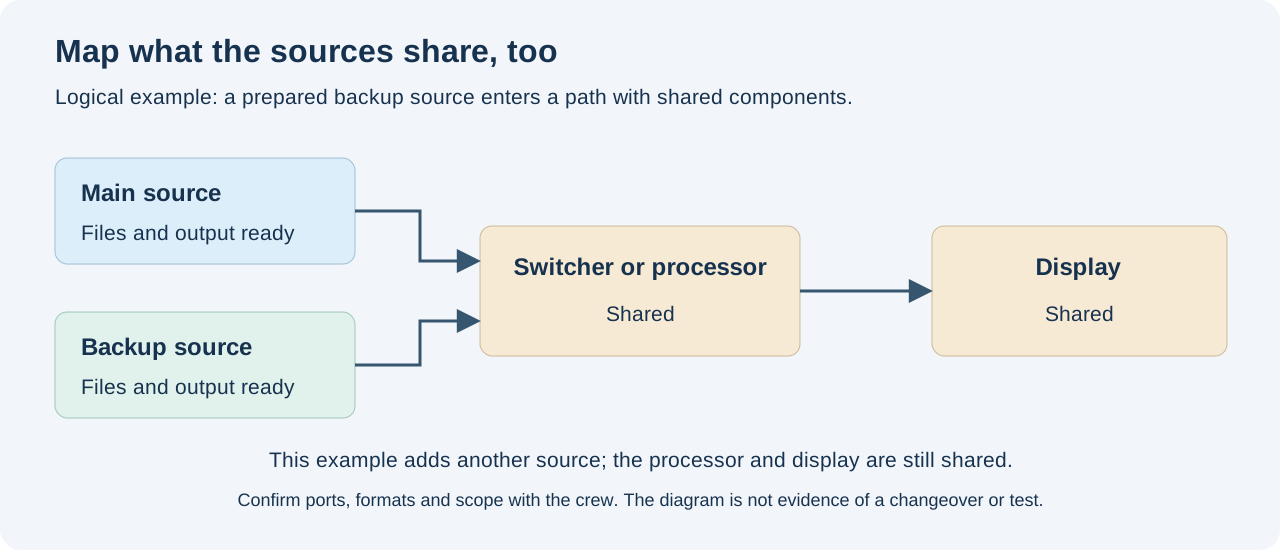
Agree what must continue during an interruption
Review the agenda with the organizer and operators. For each segment, list what needs to continue: the speaker’s voice, a slide, stage video, a remote participant, the livestream or the recording. Agree on an acceptable pause or alternative while a function is restored.
The decision may differ between a talk and a clip. Prepare holding content and check that its path remains available in that failure scenario. Also agree who will make an announcement if that output cannot be used. If the incident affects venue safety, follow the venue’s procedures and designated personnel; this worksheet covers AV signal paths.
Define a specific failure for each backup
Write down what stops working and the result you expect from the alternative. The table suggests scenarios to discuss with your crew; add the actual models, connections and event tests.
Avoid labeling everything “backup” without defining its scope. A file copy, another video source and another internet connection serve different purposes. Record the conditions that would prevent each backup from being used.
| Rehearsal scenario | Backup to prepare | Also check |
|---|---|---|
| Playback computer stops delivering content | Another source with tested files and output | Switcher, processor, display and other components shared by both sources |
| Main microphone stops delivering speech | Another microphone and input ready to use | Console, mix, PA and operation needed to hear it |
| Main livestream internet connection is lost | An agreed alternative internet path | Encoder, router, power, destination and session reconnection |
| Main recording stops saving | Another agreed and tested recording | Shared sources, media, tracks and the resulting file |
What do you need to add to the plan?
Backup equipment
If your technical crew connects and operates the system, ask about the missing equipment and the function it needs to replace. Let’s agree on compatibility, preparation, technical handover and delivery or pickup.
Ask about equipment onlyRehearsal and crew support
If you already have part of the system or a technical production company, ask about the missing tasks. We agree on the positions, test, rehearsal window, changeover and return, and how to document observations.
Ask about rehearsal and technical supportSeveral coordinated systems
You can combine audio, video, cameras, recording or streaming as needed. Let’s agree which failures to cover and which equipment, connections and tasks remain shared.
Ask about several systemsThe proposal should identify what GLMedia, the client, venue and other suppliers provide: equipment, files, connections, preparation, testing and operation. Define who reports, who authorizes changeover and return, and who acts at each position and during which hours. General event organization and the venue’s emergency plan retain their own assigned responsibilities. A proposed backup remains unverified until rehearsed within the agreed scope.
Map the dependencies shared by both paths
Follow each backup from its source to its destination. Mark where the paths meet and which controls, devices or power supplies they share. In this guide’s diagram, two sources feed the same switcher or processor and the same display: those components remain part of both paths.
Use the diagram to agree what the quote covers and what remains unresolved. The internet guide covers connection dependencies; the conference LED, recording and streaming guide helps identify the outputs.
Prepare the project on the backup computer
Open the files on that computer and rehearse the full segment, including video and audio. Identify the versions, applications, devices and outputs you will use. Test the route for holding content and what remains available in the failure scenario.
If you use vMix 29, the Preset Bundles guide explains how to package a preset with its media and what is left out. Open that copy and test it on the backup computer. Use the presentation worksheet to organize content intake.
Test the video changeover and return
Identify the signal condition or alert that triggers the change, and whether an operator or the configured equipment will make it. Also test a frozen presentation that still outputs a video signal: record how the operator will recognize it and respond. Restoring a connection does not confirm that the file is at the correct playback position.
For VX1000, the input backup guide defines the feature’s scope and return setting. Check the manual for the chosen model and watch the LED display during signal loss and restoration. Compare the documented behavior with your actual signal path and content.
Prepare a voice path the operator can check
Agree which microphone will replace the main one and who will hand it over. Prepare its channel and sound-check it before rehearsal. Also check the mixes sent to the room, remote participant and recording; the backup microphone must reach every intended destination.
Record who may change the patch or restore a configuration, particularly when using the venue’s system. The sound guide helps check inputs and mixes; the hotel coordination guide identifies handoffs and responsibilities.
Rehearse livestream recovery from the viewer’s end
Agree on the test and use of the alternative connection with the network lead. Watch the player from a viewer account while the operator makes the planned change. Record whether reconnection or platform action is needed and what happens to picture and sound.
For Web Presenter HD/4K, the Connection Priority guide identifies the encoder’s connection selection setting. Include the actual phone and signal path in the test. If you record while streaming, open that take too and check what was preserved.
Test changeover and return as separate steps
Agree on a rehearsal before the show, outside sessions that could be affected. The technician defines the method and how to restore the starting state. Record signal loss, detection, notification and action separately when they can be identified. For each destination, note when the agreed content, picture and voice return; record separate times if they return at different moments. Define the action that starts each measurement and the result that ends it.
If equipment returns automatically when the signal recovers, agree on that behavior before rehearsal and check what content resumes. For a manual return, designate who authorizes it. Check the file, playback position, audio and picture off air if the system allows; otherwise agree with the show director how and when to check them. Rehearse the return and record the result at each destination.
| Event destination | During changeover | On return |
|---|---|---|
| Room | Picture and speech that continued; observed pause | Content and audio resumed |
| Remote participant | What they could see and hear; reconnection needed | Two-way conversation |
| Livestream audience | Player result; action needed | Program received and observed continuity |
| Recording | Segment and tracks saved | Take reviewed and any gaps identified |
Keep the tested plan with the run of show
Download the continuity worksheet and fill in scenarios, responsibilities, conditions and results. Flag untested items and the limits of each backup. Share the latest version with the people reporting issues and operating the signal paths.
If a file, device or connection changes, identify which part of the rehearsal must be repeated. After the event, retain the incident log and the result reviewed by each responsible person. This record helps improve the next setup and describe accurately what happened.
Match the same moment across paths when the stream drops
Ask the viewer to record what happened: a frozen picture, a jump, a loading screen or loss of speech. Add an identifiable content cue, such as the phrase or slide they were seeing. Record the observation time and the position that logged it. Find that moment in the local take when the operator can review it without affecting required recordings. The player may be delayed; do not assume the clocks at both positions agree.
Identify the device or application making the local recording and the signal it receives. Compare that segment with encoder output, platform ingest and the affected player. Record the file and segment you actually reviewed: a recording that keeps running does not by itself locate the livestream interruption.
| Observation point | What to identify | What to retain from the segment |
|---|---|---|
| Local file | Recorder or application and its input signal | Name, content cue, and segment opened with picture and speech |
| Encoder | Session, model or version, and stream destination | Named indicator, values and time of each reading |
| Platform | Account, event and displayed ingest status | Observed alert and time; information not yet available |
| External player | Observer, device and connection | Content cue, symptom, speech received and local observation time |
Record what changed during the dropout before changing the profile
Save a baseline of the indicators before rehearsal and another reading when the incident occurs. Identify the session, time and indicator names shown by the encoder. If a counter accumulates from the start, record both values to see how much it changed during that interval. A large total at the end of the show may combine issues from different moments.
Connect that log to the viewer’s report and the status shown by the platform. Record what was on program and which tasks were still running. If you need to change the stream to restore service, note the previous setting first, then the action taken. The change may help keep the stream going; diagnosing the cause still requires comparing the results.
For vMix 29, the Statistics and dropped frames guide separates capture, rendering and encoders. Identify the stream and recording being compared; save both sets of values for the dropout interval.
In vMix 29, check View Status while streaming. Save the status with the dropout time and compare it with the viewer’s report. This adds evidence from the outgoing stream; platform reception and the local file still need checking.
For Web Presenter HD/4K, follow the Data Rate and Cache guide. Record those readings with the time and retain what the external viewer saw in the identified segment. Separately record which device makes the local copy and which part you could open.
Confirm recovery with the voice and content the audience expects
After changeover or reconnection, check the agreed viewing link with the external observer. If playback remains stuck, record whether they had to reload it. Ask them to confirm voice, picture and the point in the program. If only one viewer reports a dropout, compare with another and record each device and connection. These observations establish which viewing experience failed; the cause still needs confirmation.
During rehearsal, save a sample from before the dropout, one from the incident if available, and one after recovery. Match each to the local take and encoder log. Repeat the test with the same planned tasks running and record how long you observed the result. Keep anything you could not watch or hear marked as unverified.
Add the observations to the stream interruption comparison section of the continuity worksheet. For the next rehearsal, identify the starting state, the change tested and the items still to check.
Connect each backup to the files it must preserve
For each planned recording, identify its input signal, the device or application recording it and the file destination. List the program, inputs and voices required for delivery. Use the session recording plan to connect that list to the agenda.
Complete the table before rehearsal and review the files afterward. If you prepare a second recording, also map the components it shares with the main one. The technical lead defines the test, starting state and return procedure; leave any untested behavior marked as unverified.
Add results to the recording section of the continuity worksheet. To compare alerts with the file delivered to the editor, use the recording skips guide.
| Comparison item | Identify before rehearsal | Complete during review |
|---|---|---|
| Material to preserve | Session, program or input signal, and agreed voices | Segment reviewed and tracks heard |
| Main and backup paths | Source, connections, device or application, versions and destination | Path that stayed active during the test |
| Shared dependencies | Shared signal, switcher, computer, storage and power | Scenario tested and what remains unverified |
| File from each path | Name, location, format and expected duration | Observed duration, segments and differences |
| Changeover and return | Who reports, decides, operates and reviews | Actions, sample and person handling follow-up |
URSA Broadcast G2: two cards split the recording
On URSA Broadcast G2, Record RAW on: 2 cards splits Blackmagic RAW across media. Copy .BRAW and .BRAW2 files into the same folder; DaVinci Resolve combines them on import. Test this with a rehearsal copy. Manual, pages 99–100.
HyperDeck HD Plus: switching recording media
The manual describes recording that continues from one medium to the next. On HyperDeck Studio HD Plus, that continuation is not a second copy of the same segment. Check the active medium and remaining time on the LCD. Rehearse the change and review the segments on both media.
vMix 29: what MultiCorder records
In vMix 29 (4K, Pro and Max), MultiCorder records supported camera/NDI inputs without mixer effects, color correction or positioning. Output 1–4 retain processing; their audio follows the bus assigned to each output in Settings - Outputs / NDI / OMT / SRT. Direct NDI-HX and vMix Call inputs are not supported. Manual.
Record and open a sample to check the expected picture, graphics and voices.
VX600: exporting and restoring a configuration with V-Can
Identify the file and its source unit before changing a configuration; do not choose a backup because its name looks familiar.
Documented procedure: connect the VX600 to the PC running V-Can over Ethernet. System → Backup → Export lets you choose the path and name; Open completes the export. Keep the .img extension. To restore, use System → Restore → Import, select the backup and choose Open. The unit restarts automatically. Reference: NovaStar VX600 manual V1.5.0, chapter 7, pages 53–54.
That chapter does not detail every receiving-card parameter or establish compatibility between firmware versions. It does not support a claim that restoration fixes calibration or any LED panel. Also keep the files and versions identified by the cabinet manufacturer for that specific assembly, with their provenance.
To test the export, start from the approved setup and record the unit, date, firmware, V-Can version and file path. Confirm the file exists and keep another copy with screenshots of the initial state. This verifies that a file was saved; recovery remains unverified until tested.
To rehearse restoration, reserve a window without an audience and a content path that can sustain the event during the restart. Identify the unit and backup before importing. Then compare framing, layers, regions and signal with the approved setup; record the observed interruption and return. Record the interruption duration and when the expected content returns at each destination; do not assume a recovery time.
Keep presets, processor backups and cabinet files as separate records. This procedure starts by preserving the configuration, not by resetting the unit.
Connect that record to the VX600 preset guide, USB and network connection guide and video and displays guide. Complete the preset and backup worksheet for your GLMedia event production plan.
| Separate records | What to identify | What still needs testing |
|---|---|---|
| Presentation preset | Position, approved framing and person responsible | Recall rehearsal; picture comparison |
| Exported processor backup | Unit, firmware, V-Can, date and file | Import and recovery in the planned window |
| Files supplied for the cabinet | Manufacturer, model, batch, receiving card and version | Match confirmed with the supplier |
Frequently asked questions
Do two computers make a presentation backup ready?
The second computer needs tested files, audio, devices, output and source selection. Rehearse the segment on that unit and record which equipment it shares with the main computer and which failure the backup covers.
Is a file copy the same as a backup signal path?
A copy preserves content. To use it during the show, you also need an available, tested source and signal path to the event’s destinations.
Is a frozen image the same as video signal loss?
A presentation can freeze while still delivering a video signal. Rehearse that situation separately from signal loss: record what the operator sees, how each failure is detected and which action puts another image on screen.
Can I call the whole system redundant if I have two sources?
Map both paths to the destination and identify what each source covers. If they share a switcher, processor, display or power supply, those remain common dependencies. Describe that scope when presenting the backup plan.
Who decides to use the backup and return to the main system?
Agree this with the show director and operators before rehearsal. Record who reports, checks and authorizes manual changes. If equipment returns automatically, agree on its configuration and check what content resumes.
What recovery time should I put in a proposal?
Use test results with recorded conditions and scope. State the start point, the result that ended each measurement and the observed destination. Separate picture and speech if they return at different times; leave untested behavior unconfirmed.
How do I know what was recorded during recovery?
Open the saved take and review that rehearsal segment and its tracks. Match any differences to the change log; the livestream player does not verify the file’s contents.
What does GLMedia need to review a continuity plan?
Start with the date or timeframe, location and what needs to continue: speech, picture, remote participation, streaming or recording. Identify equipment and crew already available, what you want to book and undecided details. You do not need models, a completed worksheet or rehearsal results to start an inquiry. You can email any agenda, signal paths or tests you have, or arrange how to share them through WhatsApp. The proposal establishes the scope and what remains unverified.
If the local recording is good, was the dropout definitely an internet problem?
The local copy alone does not identify the cause. If the segment retains picture and sound, compare it with encoder output, platform reception and the viewer’s experience. Record which segment you actually reviewed.
How do I match a viewer’s report to the local file?
Record a recognizable program cue, such as a spoken phrase or visible slide, and the time of each observation. Find it in the file and identify the segment you could review. Player latency and clock differences mean timestamps alone may not identify the same moment.
Does a high final counter tell me when the dropout occurred?
The total at the end of the event does not locate the dropout. Save the baseline and incident values with session and time; for cumulative counters, compare the change over that interval. Check what the indicator measures in the encoder manual.
When can I consider the livestream recovered after reconnecting?
Use the condition agreed in the plan: the viewer receives the intended picture, speech and content. Record separately what the encoder confirms, what the test viewer received and which file sample you could review.
Does Record RAW on: 2 cards save two complete copies on URSA Broadcast G2?
No. Record RAW on: 2 cards splits Blackmagic RAW data across the two media. To assemble the take, copy the .BRAW and .BRAW2 files into the same folder and import them into DaVinci Resolve. Check this with a rehearsal copy; either medium alone is not a complete backup.
Does HyperDeck Studio HD Plus make simultaneous copies on two cards?
Media switching continues recording on the next disk or card; it does not make a simultaneous second copy of the same segment. On HyperDeck Studio HD Plus, check the active medium and remaining time on the LCD. Rehearse the change and review the segments saved on both media.
Does vMix 29 MultiCorder record the same thing as program?
It depends on the source selected. Supported camera and NDI inputs are recorded without mixer effects, color correction or positioning; Output 1–4 retain their processing and the audio bus assigned to each. Record a sample and check picture, graphics and voices. Two recordings on the same PC both still depend on that computer.
Can I restore the VX600 during a presentation without interrupting it?
The manual states that the VX600 restarts automatically when restored. Reserve a window without an audience and prepare an alternative content path before rehearsing recovery.
Does a file exported from V-Can prove I can recover the event?
Recovery still needs rehearsal. Check that the file exists and matches the unit, then test restoration and return in the planned window. Record the result and flag anything that could not be tested.
Sources and manuals
- NovaStar VX1000 V1.5.0, pages 39–40
- vMix 29: Preset Bundles
- vMix 29: Save As
- Blackmagic Web Presenter, May 2024, pages 19 and 21
- vMix 29: Statistics
- Blackmagic Web Presenter manual, May 2024, page 14
- vMix 29: streaming View Status
- Blackmagic URSA Broadcast G2, November 2025, pages 99–100
- Blackmagic HyperDeck, February 2026, pages 9–10
- vMix 29: MultiCorder sources and audio
- NovaStar VX600 V1.5.0: chapter 7, Device Backup/Restore, pages 53–54