
Video · Practical guide
Presentations for panoramic LED screens: requesting and reviewing files
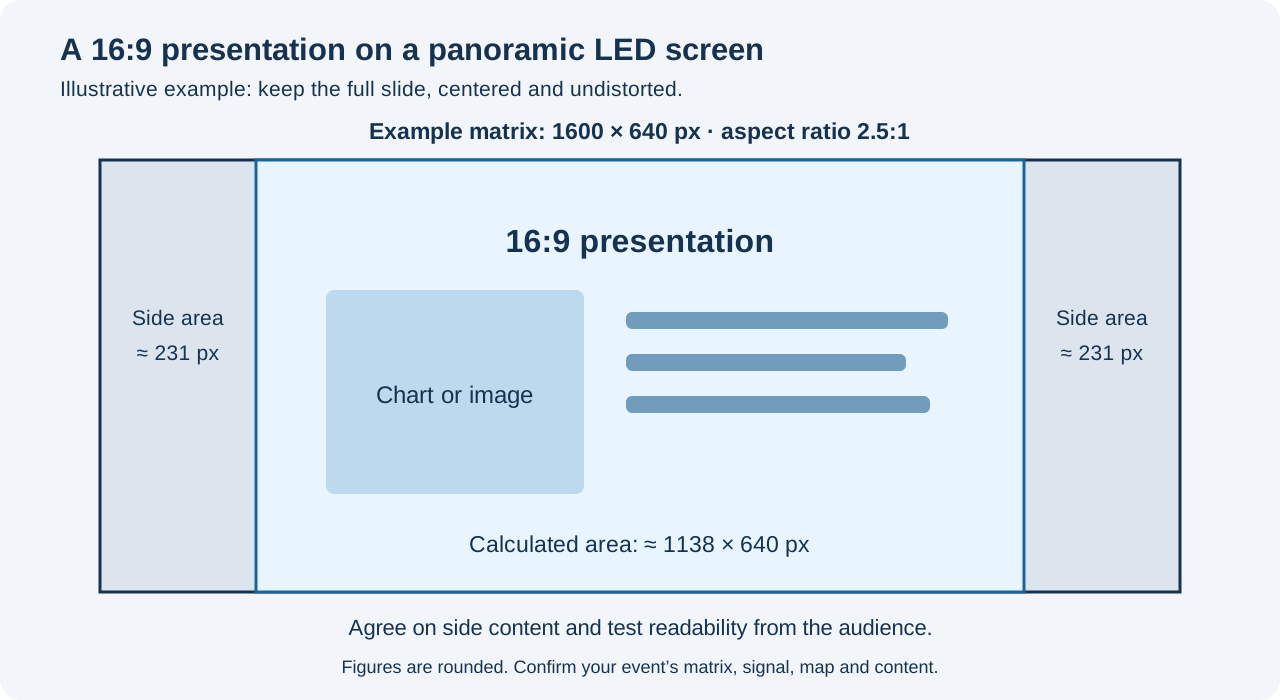
Your LED screen is panoramic, and presentations are coming from several speakers. Before opening the files, agree where each slide will appear and how the remaining space will be used. This guide uses a 1600×640 pixel screen to organize file requests, delivery and rehearsal. Confirm your event’s actual pixel matrix and input signal separately.
Separate the LED pixel matrix, input signal and presentation
Ask for the assembled LED screen’s width and height in pixels. Then record the signal the processor will receive and which part of that signal will be used. The physical pixel matrix, computer output and slide dimensions describe different things. Give all three to the content designer and operator.
In this example, 1600×640 has a 2.5:1 aspect ratio. A 16:9 presentation has a different shape. The laptop does not necessarily need to output 1600×640 just because that is the screen’s pixel matrix: the technician must confirm the supported format, region used and scaling. Complete the LED content map with your setup’s values.
Decide where a 16:9 presentation will fit
The table compares three choices for this example. Agree on one with the designer and operator before collecting all the files. If the side areas are reserved for branding or information, decide who prepares them and how they are combined with the slides.
Avoid distorting images as a last-minute fix. Review the whole slide, especially titles, tables and footnotes. Spare width can serve another purpose; cropping requires approval of the information that will be removed.
| Choice for this example | What happens on a 1600×640 screen | What to review with the speaker |
|---|---|---|
| Keep the full 16:9 image, centered | Approximately 1138×640 pixels, leaving about 231 pixels on each side | Readable text within that area and the purpose of the side areas |
| Redesign for 2.5:1 | A new composition can use the full width | Every slide, reading order, graphics and animations |
| Fill the width, preserve the aspect ratio and crop | The scaled image is 1600×900; a centered crop removes 130 pixels at the top and bottom | Which information falls outside the screen; approve the crop or choose another approach |
Send a clear file request
Ask for the session name, speaker, duration, language and presentation version. Specify the agreed format and attach a template if available. Request video, audio, required links and any applications the speaker plans to use. Explain which can be tested on the event computer.
Agree on delivery and rehearsal dates. Identify who can approve design changes and who receives corrected files. List any missing materials and decide what will be shown while that session’s content is being resolved.
Review formatting on a copy of the presentation
Keep the original file and identify the copy you will adjust. Before changing slide size or rearranging elements, save a visual reference of the slides. Then compare titles, tables, photos, notes and any transitions the speaker needs.
For PowerPoint, the slide-size guide (Spanish) explains the choices when changing the format. Agree with the speaker on what can be redesigned, then return a clearly labeled version for review. Changing slide size does not establish that every slide is ready.
Test videos on the event computer
Open a copy from the location the operator will use. Play each video from start to finish and listen to its audio. Check whether it needs an internet connection, external files, captions or a language selection. A video that plays on the speaker’s computer still needs this test.
The PowerPoint media-compatibility guide (Spanish) covers Windows controls and limitations. Check what will change before optimizing media. Keep the original and review the resulting copy with the audio and text needed for the talk.
Use a test pattern to check the visible area
The example download is 1600×640 pixels and marks the edges, corners, center, grid and a circle. Prepare a pattern for your event’s confirmed matrix and map. Send it through the same playback path as the presentation and check every destination.
If corners are missing, the circle changes shape or an area is hidden, note where the difference appears. A pattern generated inside the processor serves a different check; the VX1000 guide (Spanish) explains its scope. Neither image alone identifies the cause of a fault.
Check it from the seats with the most restricted views
Show the most demanding slide and check it from the back row, sides and tables with restricted views. Ask someone to read a title, a number and a table reference. If that is difficult, decide what to enlarge or split across slides. The pattern does not replace the real presentation.
Rehearse the speaker’s movement, lighting and planned camera shots too. If there will be a nearby monitor or livestream output, test that composition separately. Text that works on the stage LED screen may need a different size or layout elsewhere.
Check notes, source changes and outputs
Record what the speaker sees, what reaches the LED screen and what goes to the livestream and recording. Test a transition between slides, video and camera, then return to the speaker’s content. Check where notes, windows and controls appear when applications open or close.
For Resolume Arena, the documentation distinguishes Input Selection, which selects the content region, from Output Transformation, which places that region on the output. Check the map as well as the file, and use the Resolume guides to follow the signal path.
Record the approved version and who is responsible for it
Use filenames that identify the session, speaker and version. Record which file was reviewed, who approved it and what remains unresolved. Do not silently replace a file the operator has already tested. If a revision arrives, identify the changes and repeat the affected part of rehearsal.
Agree on a process for revisions after delivery. If production approves, an earlier approved version can remain ready while the new one is tested. Record that decision and notify the operator. Keeping two files still requires choosing and testing how each will be used.
AV.io HD: compare the input signal with the captured frame size
The AV.io HD specifications list input up to 1920 × 1200 and YUV 4:2:2 output. The application selects the captured frame size; receiving HDMI does not guarantee that every source setting is preserved.
The Epiphan support documentation explains that a different capture resolution may scale the input. Preserve aspect ratio adds bars when the ratios differ; removing bars is not a sharpness correction.
Test the same slide through capture, LED display and recording. Note where text and lines change, varying one setting at a time in the readability worksheet. Also check the EX 2C HDMI format guide (Spanish) if that device is in the signal path.
ProPresenter: check object scaling as well as output settings
In Configure Screens, Hardware → Output selects the device and resolution. Check that output separately from each image’s scaling setting.
For Media cues, open Inspector → Properties → Scaling. According to Renewed Vision, scaling applies inside the object rather than across the whole slide. The Inspector preview does not show that change; check the destination.
Before the event, compare a label and circle in each mode. Check edges and proportions. Scaling a PNG does not, by itself, fix a distorted text box.
| Media scaling mode | What to check |
|---|---|
| Scale to Fit | Preserves the aspect ratio; may leave bars |
| Scale to Fill | Preserves the aspect ratio; may crop |
| Stretch to Fill | Fills the object; may distort |
ProPresenter: check which layers reach the room and livestream
The Looks documentation arranges each Audience Screen in a column. Compare the enabled layers for the room and livestream, including any alternate Presentation theme.
Activate the selected preset with Make Live. Check slide actions that could change it.
Rehearse a title and logo at both destinations, including the return to the normal Look. Record what you observe in the destination worksheet. To plan recording and livestreaming, use the conference video guide.
ProPresenter: assign the speaker monitor’s layout
The Stage Screen documentation covers current slide, next slide and notes; Screen Preview can display a selected screen. In Screens → Edit Layouts, check the source for each object.
Apply the layout to the chosen Stage Screen with Show. Check slide Stage actions too: they can change the layout and leave it active for subsequent slides.
Identify the physical output and rehearse the change and return with the speaker. A preview does not verify the entire path.
Hold a still image on the livestream while slides advance in the room
The Announcements documentation explains how to run another presentation at the same time. Assign the still image to Announcements using the destination control in the header. In Screens → Edit Looks, enable that layer for the livestream. Disable any lower layers that should not appear behind it.
Advance several slides and check both destinations. Record the return in the transition worksheet.
Before clearing content, check which layers the Clear Group preserves
The Clear Groups documentation specifies ProPresenter 7.7 or later. Open Configure Clear Groups from the clear actions. Review the checkboxes: Props, Announcements, Presentation, Presentation Media and Video Input are separate items.
For Announcements and Presentation, the gear control determines whether the timeline also stops. Editing Clear All can mean it no longer clears everything.
Rehearse the transition, observe what remains and check the return. Compare the layers for each destination.
The countdown restarts every time the loop repeats
The countdown documentation explains that a Timer Action runs each time that slide is selected. For a timer that must continue through a loop, it describes starting it from a Header or Timers.
Review start and reset actions, let two cycles run and observe what happens at zero. Record the result in the startup worksheet.
A macro groups actions: check how the return is triggered
The macro documentation explains how to group actions and trigger them from Show Controls or a slide. Open Edit Actions to review the contents; Table View shows assigned actions. To attach a macro, use Add Action → Add Macro.
Record what triggers each change, check the room and livestream, and rehearse a manual return. Review layers by destination and clearing layers.
Trigger an action at a point in a video with Playback Markers
The Playback Markers documentation dates the feature to ProPresenter 7.10. In the Media Bin, open Inspector → Playback Markers, position the playhead and choose Add Marker. Attach the action with Add Action.
Test full playback and the return. Selecting a marker from Transport Controls also runs its actions; check that jump in the trigger worksheet.
Calendar: schedule a trigger for a specific time
The Calendar documentation describes triggers by date and time. Open View → Calendar, check Enable Calendar and create the event with Add. Assign a presentation, playlist or macro, and check Repeat if needed. Test runs the action immediately.
Rehearse the scheduled time and an interruption, review the schedule and define a manual return. Also check the countdown and macro actions.
The video is loaded, but the screen shows a solid color
According to Output Layers, a Media Action belongs to Media, while a Slide Element belongs to Slide. From 7.11, a slide or presentation background color sits above a Media Action set to Background. Foreground remains visible in that situation.
To investigate a color covering the video, duplicate the slide and uncheck Background in the Editor’s Slide or Presentation tab. Compare the output and record the result in the media worksheet. Also check the destination’s Look.
Media is missing after moving or renaming a folder
After reorganizing files, confirm that automatic relinking finds each resource and that the complete presentation plays correctly.
Media Management distinguishes two import behaviors: with Manage Media Automatically on, files are copied to Media Assets; with it off, they remain referenced at their original location. Compare the stored and current paths. To find the same files elsewhere, review Automatically Relink Missing Media Using Alternate Paths and the selected folders. Test a copy of the presentation and record each recovered item in the worksheet.
Move data with Sync: check source, destination and replacement options
The migration guide describes preparing a repository, selecting the data and using Sync Up to Repository on the source computer, then Sync Down From Repository at the destination. With Replace My Files enabled, the synchronized content matches what is downloaded from the repository. Leave it unchecked if existing data must be preserved.
Back up the files and test the migration in a rehearsal installation. Record direction, selections and results in the migration worksheet.
Build a playlist from presentations in different libraries
Building your Playlist confirms that a playlist can include presentations from any library.
Right-click the presentation and choose Add to → playlist to append it. To place it between sessions, drag its title over the playlist name, wait for the list to open and drop it at the intended position. Compare the order with the event schedule and run through it in rehearsal. Record the file, position and result in the worksheet; also check for missing media.
The HDMI screen has a picture but not the expected audio
Audio Outputs distinguishes Main, Inspector and SDI & NDI. In Settings → Audio, identify the Main device, routing and level. Inspector uses Listen on Main by default. Record each destination in the audio worksheet and listen to the same test source there.
Record the device models and routing before testing. If Main already feeds a sound console, document that path before changing it and check that destination during rehearsal. See the panel audio coordination guide.
After a move, check the music playlist and the action that triggers it
Treat the transfer as unverified until the music plays correctly on the destination computer.
The Slide Actions article documents dragging an Audio Bin playlist onto a slide, or adding Audio Bin Playlist from Action Palette, from version 7.3. In a rehearsal copy, check that files are available and that the intended playlist and trigger are selected. Activate the slide, listen through the sequence and record the result in the worksheet. Check Sync migration if you are moving data.
Play video audio in the room without sending it directly to the livestream
Record the build, operating system and complete channel map. Physical routing requires its own check.
The official example, introduced with 7.2, uses internal channels 1/2 for playback and 3/4 for the console return. In Inputs, it excludes 1/2 from the return; in Screens → Capture settings → Audio Routing, it sends 3/4 and excludes 1/2 to avoid duplicated audio.
Removing the direct feed does not remove video audio that remains in the console mix. Listen to both the room and stream during video and speech, and record each path in the worksheet. Continue with the hybrid panel guide.
When switching from video to speech, check the audio input mode
Audio Input documents four modes: Off disables the input; On keeps it active; Auto Off mutes it when a Foreground video with audio is triggered; Auto On activates it when a linked video input reaches Audience. The mode persists after restarting.
Record Source, mode and link. Rehearse speech → video → speech and listen at the final destination at each step. Record changes in the worksheet. Selecting On without checking feeds and returns can leave an unwanted path active.
VX600: another layer appears in the side bands
For the VX600, press the knob from the home screen and open Layer Settings → Main Layer, PIP 1 or PIP 2. Status opens or closes each layer. Scaling Mode → Custom provides H Width, V Height and Initial X/Y; Priority 1 is at the back and 3 at the front. Reference: NovaStar VX600 V1.5.0, §5.3 pp.19–21.
Pixel to Pixel preserves the source or crop size; it does not fit a complete presentation to any LED screen. SCALE takes the lowest-priority layer full screen. Check that shortcut if the bands disappear: §5.3, p.20 and §5.3.2, p.22.
Test outside the show. First photograph all three layers’ settings and record their source, crop, size and position. Keep the framing you want to check, then close one of the other layers at a time. Note whether the image in the margins disappears. Restore the starting state if the change does not explain the symptom.
For a full 1920×1080 source on a 2240×900 canvas, the calculated fit is 1600×900 at (320,0): uniform scaling is 5/6, leaving 320 pixels on each side. Compare it with an edge-marked test pattern.
Checking only the central presentation can miss a framing problem. Inspect both margins and all active layers too.
Use the H2/VX600 scaling worksheet to document one change at a time. Confirm VX600 on the label: the menus described here do not automatically apply to the VX600 Pro. For a conference with a panoramic screen, relate the test to video and screens (Spanish) and GLMedia video processing.
| Layer record | Before | Proposed change | Actual result |
|---|---|---|---|
| Main Layer: source, crop, size, X/Y, priority, opacity | To complete | Keep the framing being checked | Pending |
| PIP 1: same fields and status | To complete | Close only if it is not the layer being checked | Pending: inspect both margins |
| PIP 2: same fields and status | To complete | Test separately and restore the initial state | Pending: inspect both margins |
VX600: save and recall framing with a preset
Prepare the approved framing so the operator can recall it for the next presentation. A saved preset still needs a recall test; it does not establish why an earlier framing was lost.
From the home screen, press the knob and select Preset Settings → slot → Save. Saved indicates that it is stored. To recall it, select the slot → Load; its status becomes In Use. The preset stores layer status, source, size, position, priority, crop, opacity and input color settings. Reference: NovaStar VX600 manual V1.5.0, §5.5 pp.29–30.
Copy To copies the data to another slot. Clear deletes the data but keeps the name, so a familiar name does not prove that the framing is still stored. Record the slot, status and a photo of the settings. Do not clear a show slot as a test.
Outside the show, choose a free slot and save the approved framing. Document all three layers and display a pattern with borders and text. Make a visible, reversible change to the composition without saving over that slot, then recall the preset. Compare the center and margins against the initial capture. Record what returns and what does not; leave the result pending until the test is performed.
For conferences with different presentation formats, note the preset slot for each layout in the running order and identify who may change it. Approved content needs its own filename and version. Saving a composition does not establish that the computer will play the right file; rehearse the presentation change too.
If an image reappears in the side bands, return to the VX600 layer checks. To prepare configuration recovery, follow the V-Can backup guide. Use the preset and backup worksheet and relate the framing to GLMedia video processing. These references apply to the VX600; record the installed firmware and application versions.
| Proposed check | Initial evidence | Evidence after recall | Status |
|---|---|---|---|
| Central presentation and aspect ratio | Approved pattern and capture | Compare edges and text | Pending |
| Margins and additional layers | Photo of both margins | Check whether an unwanted image returns | Pending |
| Slot used in the show | Recorded slot number and status | Confirm which framing the operator recalls | Pending |
Frequently asked questions
Do I need to redesign every presentation for a panoramic LED screen?
You can keep slides within a 16:9 area or agree on a redesign. Choose based on the content and audience readability, and confirm what the remaining spaces will show.
Must the laptop output resolution match the LED pixel matrix?
Confirm them separately. The technician must define the supported input signal, the region used and how it maps to the matrix. Record the approved map.
Can I crop a presentation to fill the LED screen?
Review what would be lost and get approval. In this example, filling 1600×640 with a 16:9 slide while preserving its aspect ratio removes part of its height.
How can I tell whether text will be readable from the back?
Test the most demanding slides from actual audience positions. Ask people to read specific numbers and references. If that is difficult, review text size, information density and layout.
Does the test pattern replace a slide rehearsal?
It helps compare edges, orientation and proportions. Then test text, videos, audio and source changes using the event materials.
What should I include with the PowerPoint file?
Identify required videos, audio, links and applications, plus what the speaker needs during the talk. Agree on delivery and test them on the computer the operator will use.
What if a correction arrives after the file has been tested?
Save the new version with a clear name, record what changed and repeat the affected checks. Tell the operator which version was approved and who authorized its use.
What does GLMedia need to plan presentations on LED?
The date, venue, confirmed pixel matrix or available dimensions, audience distances and sample files. Add image destinations, video requirements, languages, delivery deadlines and a worksheet identifying unresolved items.
Will changing the capture device guarantee sharper text?
First check the signal, capture size and destination. Differences seen in another installation do not identify the cause in yours.
Does Stretch to Fill fix a distorted presentation?
It can distort the media. Check the object and output; Fit and Fill preserve the aspect ratio, with bars or cropping.
Why does a graphic appear in the room but not on the livestream?
Check the active Look, destination column, layers and alternate theme. Then inspect the actual output; a saved configuration is not enough.
Is creating a Stage Layout enough to show it on the monitor?
Assign it to the appropriate Stage Screen and check its objects, actions and physical output. Looks configures Audience Screens; Stage uses its own layouts.
How do I remove the Announcements image afterward?
The documentation identifies the megaphone icon for clearing that layer. Rehearse what remains visible at every destination afterward.
Does clearing Presentation Media remove an image added in the editor?
That clear item excludes media added as slide objects, while Presentation includes those objects. Check how the image was added.
Does dismissing the countdown message start the next video?
The Basic Countdown section describes Dismiss as removing the message. Check the video trigger separately; do not assume that transition occurs.
Can I assume a 15-second wait within a macro is verified?
The referenced documentation describes triggering the added actions. It does not verify that delay. Check the mechanism and software version before using it in the show.
Do Playback Markers work with every media type?
The documentation supports video and audio, excluding images and media applied as Slide Elements. Identify the media type and version before preparing the action.
Is a newly created Calendar event ready to trigger the show?
The documentation requires an assigned action. Use Test to check it, then test the scheduled trigger as well. These are separate checks.
Should I turn the video into a Slide Element to fix the issue?
First identify its layer and the background color. Changing how the video was added requires checking the functions you need again, including Playback Markers.
Does enabling Manage Media Automatically repair all previous links?
The article describes copying media during import. It does not promise to repair every existing link retroactively. Check the affected media and playback before treating the problem as resolved.
Is enabling Manage Media Automatically before Sync enough?
The migration guide warns that media added before the option was enabled will not transfer. Review those files using the missing-path guide and check playback.
Does an ordered playlist confirm that every video works?
Check order, picture and sound separately. Run through each session on the event computer and record unresolved items before approving the version.
Does hearing video in Inspector confirm the screen’s audio?
Monitoring depends on the selected device. Listen at each actual destination and record the path; an HDMI picture does not verify the audio path.
Does the Slide Actions article confirm that an exported bundle includes all playlist music?
It documents triggering, not export packaging. Verify packaging for the build in use and test the music at the destination.
Are those the sound console’s USB channel numbers?
The example uses ProPresenter’s internal channels. Check the physical mapping for the interface and configuration in use.
Does Auto Off explain an audio interruption?
It is a documented behavior to check. The symptom alone does not establish the cause or guarantee that changing the mode will fix it.
Must I always use Main Layer to get black side bands on the VX600?
Review all three layers and test the composition. The layer that works for one setup does not establish a rule for every event.
Why can SCALE change the VX600 side bands?
The manual says it takes the lowest-priority layer full screen. Record which layer changes and check the framing again.
Does a VX600 preset’s name prove its data is still stored?
Clear keeps the name and deletes the data. Check its status and the recalled framing before considering it ready.
Does saving a preset confirm that the correct presentation will be ready?
Test framing and the content file separately. Document the preset slot and presentation version the computer should play.
Sources and manuals
- Resolume — Input Selection
- Resolume Arena — Output Transformation
- Microsoft: slide size (Spanish).
- Microsoft: media compatibility (Spanish).
- NovaStar VX1000 V1.5.0, pp.34-35
- AV.io HD tech specs
- AV.io HD software and documentation
- Screen Configuration in ProPresenter
- Media Scaling Options
- Using Looks to Show Different Screen Content in ProPresenter
- Using a Stage Screen to its Full Potential
- The Announcement Layer
- Using Clear Groups in ProPresenter
- How to Create a Countdown for an Audience Screen
- Using Macros in ProPresenter
- Using Playback Markers in ProPresenter
- Using the Calendar in ProPresenter
- ProPresenter Output Layers
- ProPresenter Media Management
- Migrating ProPresenter Data to a New Machine
- Building your Playlist in ProPresenter
- Audio Outputs in ProPresenter
- Triggering Media and Audio Playlists from Slide Actions
- Audio for the room and livestream
- Setting Up An Audio Input in ProPresenter
- NovaStar VX600 V1.5.0: §5.3 pp.19–22
- NovaStar VX600 V1.5.0: §5.5 Preset Settings, pp.29–30