
Streaming · Practical guide
Hybrid panel audio: room sound and remote guest return feeds
In a panel with an in-room moderator and a remote guest, both need to converse, the audience needs to hear them, and the recording needs to capture the exchange. Before choosing equipment, define what each participant and output receives. This guide uses an example to organize the signal paths and rehearsal.
Plan a panel with in-room and remote guests
Tell us how many people will take part, where they will be and what they need to see and hear. You can request equipment only, preparation and delivery, installation or technicians for rehearsal and the event. You do not need model numbers or a finalized connection plan to inquire.
Ask about my hybrid panel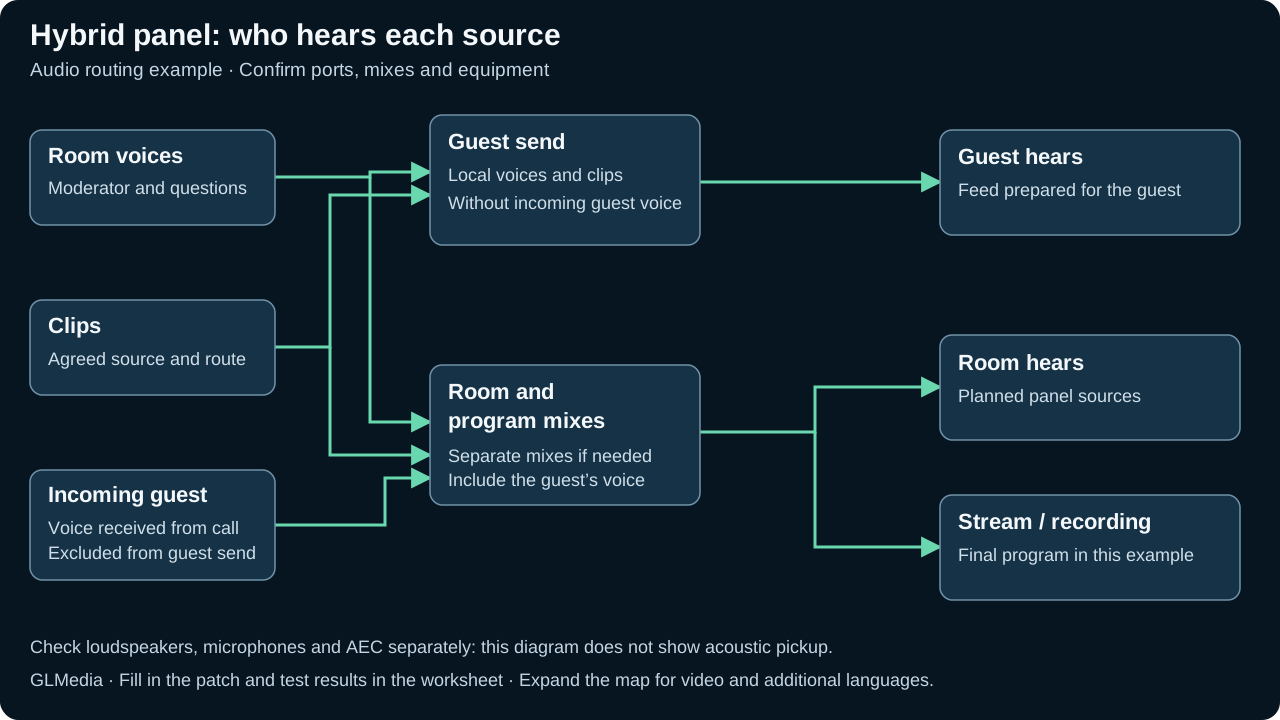
Start with who speaks and who needs to hear
List the moderator, panelists, audience questions and remote guests. For each segment, identify who may speak at the same time, who has the floor and who cues the next piece of content. This helps define inputs, mixes and operator responsibilities.
The example uses one room, one local moderator, one remote guest and approved clips. The final program feeds both recording and livestreaming. If you add remote participants, languages or rooms, expand the matrix and rehearsal: each position may need a different feed.
Agree who provides and operates each part
The proposal should identify GLMedia’s equipment and tasks, along with the client’s, venue’s and other suppliers’ responsibilities. Review these four points even when you book only part of the system:
- Sound and return feeds
- Who supplies microphones, loudspeakers, the console or interface and feeds to the room, guest and program; who connects, tests and operates them.
- Video and the call
- Who supplies cameras, displays and the call device; what the guest sees, what the room sees and what is streamed or recorded. The client or their producer identifies the approved content and agenda.
- Platform and connectivity
- Agree who manages the account, access and meeting. Confirm with the client and venue who supplies and authorizes the network, how it will be tested and what backup is planned; do not assume connectivity is included.
- Rehearsal and operation
- Define with the client or producer who coordinates guests and gives cues, and which technicians cover each position during rehearsal and the event. Agree working hours, technical handover, setup and removal of the contracted systems.
GLMedia prepares and operates the contracted technical scope. General event organization and third-party services need their own assigned responsibilities.
Ask about the scope you need
Map a mix for each destination
Use labels the crew can recognize without guessing: Room voices, Incoming guest, Clip, Guest send and Program. Add the equipment, channel or port behind each label to the worksheet. The diagram organizes the requirements; the technician must turn it into compatible connections and settings.
The example matrix defines which source each destination receives. Record video decisions separately. A mark in the table describes the intended result; you still need to check that the console or application can provide those outputs.
| Audio source | Room | Guest send | Program / recording |
|---|---|---|---|
| Local voices and questions | Yes, as reinforcement requires | Yes | Yes |
| Incoming guest voice | Yes | Excluded from this send | Yes |
| Approved clip | Yes | Yes, through an agreed path | Yes |
Check the feed received by the guest
The example guest send excludes the incoming voice of that same guest; this is commonly called mix-minus. Ask the technician to identify it in the patch and confirm which signals feed it. The program mix includes the guest, so it needs a different signal path.
During rehearsal, have the moderator speak first, then the guest. Ask what each person hears and monitor the guest send. A source shown as excluded on the diagram must also be checked in the configuration used for the event.
Check for acoustic echo in the room
Excluding the remote channel from a mix does not by itself prevent microphones from picking up the loudspeakers. Test with the microphones open and the planned room level. Ask the remote guest whether they hear their own voice returning and when it happens.
The Shure P300 guide explains which signal acoustic echo cancellation (AEC) should use as its reference for remote audio played in the room. Confirm that reference with the technician if you use this processor; the routing example does not configure AEC.
Organize call connections in the room
Zoom’s echo troubleshooting guidance identifies multiple devices with active audio in the same room as one possible cause. Muting a microphone alone leaves its speaker active. Identify which device carries the call and which other connections should be disconnected from audio.
The remote guest can try headphones to separate listening from microphone pickup. Check the room and program again: an improvement at the guest’s end does not establish what the other destinations receive. Record which change produced each result.
Test devices and routing before the discussion
Zoom’s audio test lets you select and test Speaker and Microphone separately. Record the device names selected on the call computer and check the send with the guest listening.
The full rehearsal also needs the room microphones, console outputs, and recording or streaming equipment. Test the actual panel signal path with the people who will operate each position. Keep the decisions in the worksheet and retest any part that changes.
Prepare video, clips and audience questions too
For each moment, record what the guest sees, what appears on the room screen and what enters the final program. Identify who prepares each scene and who confirms it is on air. Check that the guest can follow any slides or questions needed to respond.
For a clip with audio, agree who plays it and how its sound reaches each destination. Check that it arrives only once. Use the same file and sequence in rehearsal, then test conversation after the clip to verify the return to the panel.
Rehearse conversation, pauses and reconnection
Have the moderator speak, then the guest, then both in a brief exchange. Add an audience question and the clip. Get feedback from the room, the remote position and a viewer account; then open and listen to the saved recording.
Agree what the show director will do if the guest drops out: prepared content, an audience message and a person responsible for reconnecting the guest. Rehearse this without interrupting a live session. On return, confirm call devices, send, receive and video before cueing the guest to speak.
| Test | Who confirms | What to record |
|---|---|---|
| Moderator speaking | Guest and program monitor | Local voice received |
| Guest speaking | Room, program monitor and guest | Reception and any return of the guest’s own voice |
| Question and clip | All three destinations | Source received once and return to conversation |
| Rehearsal reconnection | Operators and show director | Devices, video and audio after reconnecting |
Bring an audio worksheet to the technical meeting
Download the hybrid panel worksheet. It covers participants, destinations, channels, call devices and rehearsal results. Fill in confirmed details and flag decisions still to be agreed.
For the rest of the system, continue with sound, cameras, internet and recording. The conference guide helps organize video destinations.
If these devices are part of the setup, check the guides to SQ-6 USB returns, P300 echo references, ATEM Mini Pro outputs and AW-UE150 startup framing. Each identifies the manual version it uses.
ATEM Mini Pro: monitoring your own voice and aligning program audio
If your own voice reaches your headphones late, identify the monitoring source before adjusting delay. Compare the local monitoring path with the signal sent to program; changing what you hear does not verify recording sync.
The Connections and Audio sections of the official ATEM Mini Pro specifications distinguish analog inputs from embedded output audio. The ATEM Mini manual, June 2026, page 7 shows HDMI monitoring for this model. Delay Control, on pages 86–87, describes adding delay to microphone-input audio to align it with video arriving later over HDMI. The control uses frames; it cannot advance audio that is already late.
To test self-monitoring, draw a feed taken before the ATEM and add only the remote return you need to hear. Verify inputs, levels and outputs for the actual models before connecting them. Check the mix-minus routing in this guide: the remote guest should receive the agreed content without their own incoming voice being sent back. Also listen to a program sample through its output path to check what the audience receives.
If analog audio leads the picture in program, save the initial Delay Control setting. In ATEM Software Control, open the delay indicator below the input level control; the manual describes adjustment in frames. Change one thing at a time and record a visible, audible action for comparison. If the sound is already late, adding delay makes it later: inspect both audio and video paths before continuing.
Record program, file and self-monitoring results in the blank worksheet, and compare other destinations using the conference guide. When planning cameras and streaming, attach the signal map and rehearsal samples when available. Check the installed version before applying functions from this manual edition.
| Observed situation | Proposed test | Result to check |
|---|---|---|
| Own voice delayed in headphones | Monitoring before the ATEM plus the remote return, using compatible equipment. | Comfort while speaking, remote content and no delayed self-return. |
| Analog audio ahead of camera video in program | Compare the initial setting with a Delay Control adjustment in frames. | Alignment of the visible action and sound in a recorded sample. |
| Audio already late in program | Identify audio and video processing before adding delay. | Which stage causes the offset; do not assume more delay will fix it. |
| Program aligned but TV or call differs | Check each destination with the same reference. | Sync on each branch and the version/configuration used. |
Frequently asked questions
Can I send the remote guest the same mix I record?
This example needs two mixes: the recording includes the guest’s voice, while the return feed to that guest excludes it. Identify both destinations in the worksheet and have the technician verify the routing. During rehearsal, have the moderator and guest speak and check what each hears.
What does mix-minus mean in this guide?
It is the feed to the guest containing the intended listening sources, minus the voice received from that guest. The example matrix shows that decision; the actual configuration still needs testing.
Does removing the remote guest’s voice from their send eliminate all echo?
They may still hear their own voice if room microphones pick up the loudspeakers or other call connections have audio active. Test with open microphones and the planned room level; ask the guest whether their voice returns and when it happens.
Should every computer in the room join Zoom with audio active?
Choose the device that carries call audio and check which others need to participate. Zoom notes that multiple devices with active audio in one room can cause echo. Muting only the microphone leaves the speaker active; check both paths.
How do we let the guest hear a clip?
Agree on the source, operator and audio/video routing. Test the clip with the guest and all other destinations; check that it arrives once and that conversation can resume afterward.
How do I check the recording too?
Save a sample of the exchange, audience question and clip. Open it after rehearsal and listen to the agreed sources and tracks; compare the file with what was heard in the room and on the call.
Does the hybrid panel diagram specify the console, interface and cables?
The diagram shows who needs to hear each source and the example signal paths. To build the system, the technician must choose compatible models, inputs, outputs, cable runs and adapters, then test them together.
What should I send GLMedia to plan a hybrid panel?
Start with the date or timeframe, location, in-room and remote participants, platform if known, and what you need to show, hear or record. Identify confirmed equipment and crew, and undecided details. You do not need to choose models or complete the worksheet to inquire. The form does not accept attachments; you can email the agenda, floor plan or worksheet, or arrange how to share them through WhatsApp.
Will ATEM Mini Pro Delay Control fix hearing myself late in headphones?
It adds delay to analog inputs to align that audio with video arriving later; it cannot advance a delayed monitor feed. Identify whether your headphones receive program, TV or computer audio. You can test monitoring before the ATEM with a remote return, after checking models and routing; then check program separately. Measure sync at each destination.
What should I test if Mic 1 audio leads the picture in ATEM Mini Pro program?
Save the initial setting and compare a visible, audible action in a recorded take. The June 2026 manual, pages 86–87, places Delay Control below the input level and adjusts it in frames. Test one change at a time and review the sample; if audio is already late, do not add more delay. Record video format, setting and installed version before repeating the test at each destination.
Sources and manuals
- Shure — P300 8.4 (2025-E), p. 13: AEC Reference
- Zoom — Managing audio echo in a meeting
- Zoom — Testing your audio settings for Zoom meetings
- Blackmagic Design — ATEM Mini manual, June 2026: page 7, HDMI monitoring for ATEM Mini Pro; pages 86–87, Delay Control for analog inputs in frames. This control cannot advance audio.
- Blackmagic Design — ATEM Mini Pro specifications, Connections and Audio: embedded audio output and analog input delay.