
Cameras · Practical guide
PTZ cameras for conferences: positions, presets and shot changes
A PTZ camera can return to several saved framings, but it needs time to move between them. If you want to alternate between speakers during a panel, prepare a shot that will cover those moves. This guide uses a teaching example with one moderator, two panelists and two cameras. The positions and roles must then be adapted to the actual room and show schedule.
Give each camera a clear role
Mark where each person sits and what happens away from the table. Here, the wide shot shows all three people and remains available while the other PTZ changes framing. The second camera follows the current speaker. Confirm that both positions still provide usable views with the room fully set.
The table assigns roles for a rehearsal; it is not a camera count recommended by audience size. If you need an immediate close-up while camera 2 is moving, plan coverage for that moment. Audience questions, demonstrations and people walking may call for different positions, another cover shot or more cameras.
| Physical camera in the example | Prepared shot | Role during the panel |
|---|---|---|
| Camera 1 | Wide shot of moderator and two panelists | Hold the picture while camera 2 changes framing |
| Camera 2, preset 1 | Moderator | Prepare their turn and check face, focus and light |
| Camera 2, preset 2 | Panelist A | Prepare their turn off air |
| Camera 2, preset 3 | Panelist B | Prepare their turn off air |
Choose positions with the room fully set
From each camera position, check both the wide shot and the tightest shot. Look for a standing person, column, microphone or screen that blocks a face. At a long table, compare both ends: framing that works for one person may leave another too far in profile.
Record the distance, height and planned support so the setup can be reviewed with the venue. Test with people in place instead of saving every preset on empty chairs. If a camera or table moves, recheck the affected shots before operating.
Identify video and control paths separately
On the worksheet, record how each camera's picture reaches the switcher and how control commands reach the camera. These may be different paths. Note the model, firmware, video input, control port or address and the device used to operate it.
Test one camera at a time: select its control, make a small move off air and check which picture changes. Then test zoom and preset recall. If the video is present but the camera does not respond, trace the control path; the Sony FR7 and VISCA guide covers a model-specific case. For the AW-RP60, also check the selection, connection and tally information.
Save presets and check what they recall
Use numbers and names the director can recognize: 1 Moderator, 2 Panelist A, 3 Panelist B. Frame the shot on each camera, then recall its preset from another position to verify it. Record what that model recalls besides pan, tilt and zoom.
The MOVE 4K preset documentation says automatic focus, exposure or white balance may keep adjusting after the camera recalls a position. It also warns that saving to an occupied number replaces the preset. Check both behaviors while setting up that camera.
Cover a camera move before showing the new shot
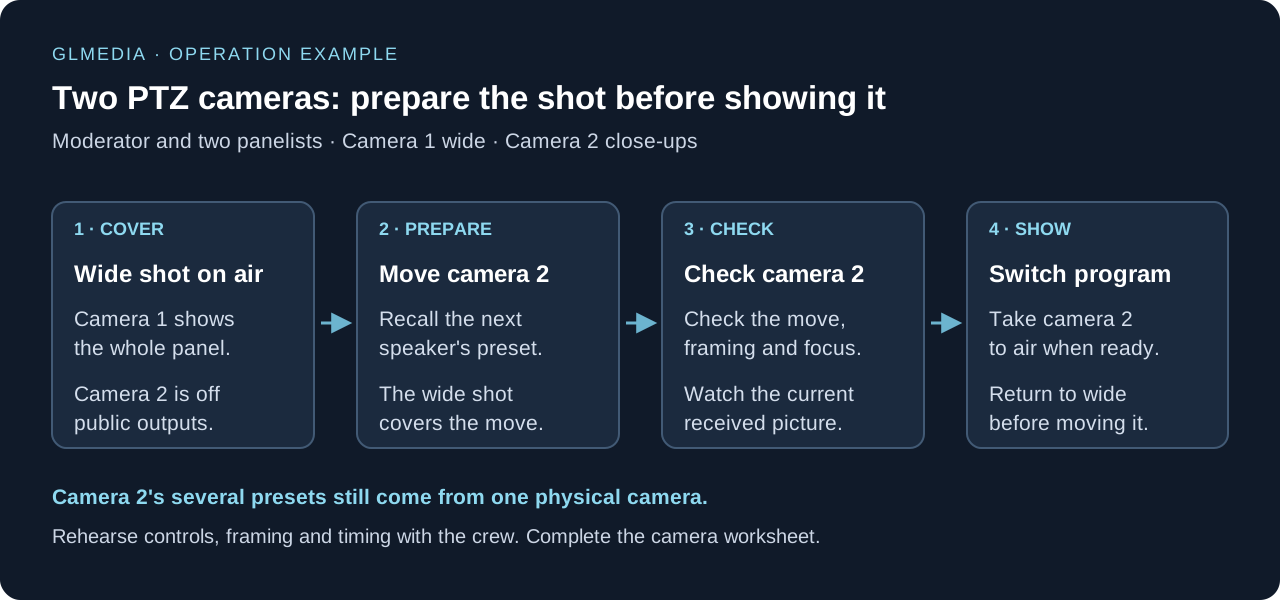
The diagram proposes a sequence for this panel. Rehearse it at conversational speed: return to the wide shot, prepare the next speaker's close-up, check it and only then switch program. If a speaker begins before the close-up is ready, hold the available cover shot and coordinate the change with the director.
In ATEM Mini with Software Control, selecting a source on the Program bus changes the on-air output; Preview lets you check a source before taking it with Cut or Auto. Confirm how the system you will use is configured to operate.
Show camera 1
Confirm that the wide shot of the panel is on program. Before moving camera 2, check that it is absent from all sources and compositions sent to the room and stream.
Prepare camera 2
Select that physical camera for control and recall the next speaker's preset.
Check the received picture
Wait for the move to finish. Check framing, focus and exposure in the live image arriving at the switcher.
Switch program
Take camera 2 to air when the director confirms that its shot is ready. Return to the wide shot before preparing another close-up on that same camera.
vMix: check the virtual input
Test which control moves each physical camera.
In vMix 29, selecting a virtual input in Preview moves the PTZ. Review the virtual input guide before programming buttons.
Rehearse speakers, lighting and handoffs
Ask the moderator to look toward both panelists. Have each participant change posture and lean toward the microphone. Recall all three presets and compare the received pictures. Correct shots that crop a head, lose focus or change lighting when someone leans back.
Test close-ups against the event background and lighting scenes. The camera guides cover focus, white balance and output controls by model. Save a sample of the changes and review it with the crew. A well-framed preset alone does not prove that all actions are covered. For the AW-UE150, the zoom-speed guide separates manual moves from presets.
Prepare coverage if a PTZ stops responding
Distinguish a loss of control from a loss of video. If the PTZ stops responding but still holds a useful shot, agree with the director whether to keep it on screen. If its video disappears, you need another available, tested picture. In this example, the wide shot may cover camera 2 while camera 1 still has signal and a useful view. Rehearse what to show if the wide camera fails as well.
Include recovery after reconnection or power-up in the rehearsal. Check camera identity, position, presets and received signal before returning it to program. The AW-UE150 start-up guide shows why a recalled framing needs checking on that model.
Give the crew one shared camera worksheet
Give the director and PTZ operator the current show schedule, positions, inputs and preset list. Mark which shots still need checking and who approves each change. If someone changes seats, tell the operator before the old preset is recalled.
The downloadable worksheet collects those details and rehearsal results. Also record what picture the room screen, stream and recording each need. If destinations use different cuts, note where those shots are selected and who operates each one.
Separate preset arrival from a shot that is ready for air
During rehearsal, agree with the director what facial detail makes the shot ready. Ask someone to call out when the movement ends and have the director confirm when the shot can go to air. Watch the current image received by the switcher. If the framing has arrived but focus is still changing, record those as separate moments measured from the preset call.
Save a sample that lets the crew locate the preset call and its arrival, along with a note of when the command was given. Record the attempt and the section of the file reviewed. The observed time helps plan that change with that camera under those conditions; do not turn it into a fixed wait for every preset.
Repeat the same test before changing a setting
Pick one troublesome preset and recall it several times from the same starting position. Keep the final zoom, the speaker's chair or floor mark, the light and the background consistent. Record what changes each time: does framing land in the same place, is the face sharp, and does focus begin hunting again?
Once you have that baseline, compare one change allowed by the model manual. Record the previous and new values, repeat the move and review both samples. If you still cannot reproduce the symptom, leave it open and preserve the conditions under which it appeared.
A photo helps document camera, speaker and background positions. Save video of the move too: a still of the final frame does not show movement or focus changes during arrival.
If a MOVE 4K does not refocus when distance changes, see the Auto Focus L guide. Check that control's state before comparing two moves, and record what you changed.
On the AW-UE150, Focus Adjust With PTZ. set to On compensates for focus loss during pan, tilt or zoom; it is available only when Focus Mode is Manual. When it is Off, the manual says to adjust focus after zooming or use Auto. Record this setting when comparing moves and check the result in the received image. Panasonic: Pan/Tilt, p. 71.
| Comparison | Keep constant | Record |
|---|---|---|
| Repeat the same preset | Starting position, final zoom, speaker, light and background | Attempt, framing arrival, moment the face becomes usable and video segment |
| Compare one model setting | The conditions of the previous test | Setting name and values, both results and any remaining questions |
| Test another lighting scene | Positions and reference preset | Scene name, result on the face and sample reviewed by the crew |
Test speaker movement too
After testing a stationary speaker, ask them to perform the planned movement: lean toward the microphone, lean back, stand up or walk to their mark. Use the close-up and lighting state planned for that segment. Watch the entire move, not only its endpoint.
If you want to compare autofocus and manual focus, first check how the model selects them. Then repeat the move without changing the rest of the test. Note where the face stops being usable and which available shot can cover it. The director needs to know when to hold the wide shot and when the individual shot is ready again.
Mark any presets or moves that remain unverified. If a chair, camera position or lighting scene changes, retest what depends on that change and update the shared worksheet.
With a Sony FR7, rehearse another person crossing in front of the speaker. The Push AF/MF during autofocus guide explains the temporary switch. Record what happens when the button is pressed and released, and which shot maintains coverage while you check the result.
Use the focus rehearsal section of the PTZ worksheet. Leave untested fields open and share the same version with the camera crew and director.
Frequently asked questions
Are two PTZ cameras enough for this three-person panel?
The example uses a wide shot and one camera for individual shots. Test whether those roles cover the timing and views you need. Immediate close-ups, audience questions or other action may require different coverage or positions.
Do three presets mean three cameras are available?
They are three saved framings on one physical camera. In this example, camera 2 must move between them while camera 1 covers the transition with the wide shot.
When should I recall the next panelist's preset?
When another picture covers program and that PTZ is absent from all public outputs, including compositions. Check the received image after the move and agree with the director when to take it to air.
What should I check if video is present but the joystick does not move the PTZ?
Identify the selected unit and trace its control path separately from video. Record the model, firmware, address or port and which functions respond; then consult that model's procedure.
Can I save presets before placing the chairs?
You can prepare reference positions, but test the shots with the actual room layout and participants. Recheck affected presets if a camera, table or person moves.
Can the wide shot remain as backup throughout the panel?
That is its role in this example, but test its view during planned action. If someone blocks it or action moves away from the panel, agree on other coverage.
Does moving a camera off program also keep it out of the recording?
Check what each recording path captures. A program recording follows the selected program shots; a separate recording of that camera may retain the move. Record which files you agreed to deliver.
What should I send to plan PTZ cameras for a conference?
Send the schedule and room plan, participant positions and planned movement, image destinations and confirmed equipment. Include distances, who will operate the cameras and the worksheet with connections and presets still to be tested.
How many seconds should I wait after recalling a preset?
Observe the move with that model, zoom, speaker and lighting. Record separately when movement ends and when the face becomes usable in the received picture. Repeat the test and coordinate the cut with the director; do not use one attempt's timing as a rule for every shot.
Is a photo of the sharp final frame enough to approve a preset?
It documents final framing. Also record video of the preset call, the move and the speaker's planned motion. Review that segment with the crew: a still cannot show whether focus changed during the transition.
Should I switch to manual focus if autofocus keeps hunting?
Compare them if the model allows it, using the same preset and route. Test the speaker while stationary and moving, then record where the face becomes unusable. A successful still shot alone does not approve speaker movement.
Do I need to repeat the rehearsal if the panel lighting changes?
Recheck the affected shots under the new lighting scene with participants in place. Record the result and save a sample. Mark what remains unverified before declaring those presets ready.